

CLI
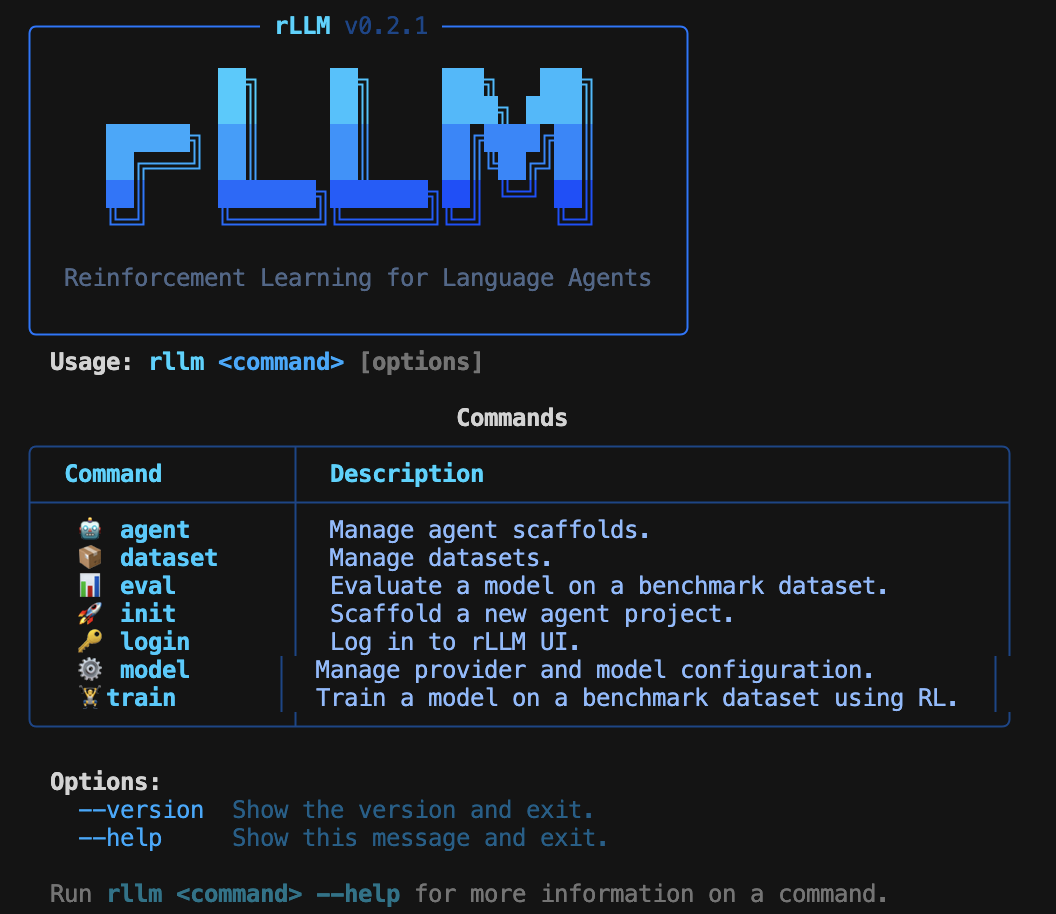
The rLLM CLI help screen
rllm CLI is the primary way to evaluate and train agents. Datasets are auto-pulled from HuggingFace, agents and evaluators are resolved from the built-in catalog, and a local LiteLLM proxy handles API routing.
First-time setup
Configure your model provider before running evaluations or training:~/.rllm/config.json.
Core commands
Typical workflow
1
Configure your model
2
Explore available datasets
3
Evaluate on a benchmark
4
Train with RL
Global behavior
- Auto-pull: Datasets are automatically downloaded from HuggingFace when first referenced by
evalortrain. - LiteLLM proxy: When no
--base-urlis provided,evalandtrainstart a local LiteLLM proxy automatically, routing requests to your configured provider. - Lazy loading: Commands are loaded on-demand, so
rllm --helpstarts instantly regardless of installed extras.
Web UI
The rLLM web UI atui.rllm-project.com provides a dashboard for monitoring training runs and exploring evaluation results.
Logging in
Authenticate with the hosted UI from the CLI:~/.rllm/config.json. You can also set the RLLM_API_KEY environment variable directly.
Enabling UI logging
Add the--ui flag to eval or train to stream live data to the dashboard:
What you can see
The UI provides:- Episode explorer: Browse individual episodes with full trajectory and step-level detail
- Metrics dashboard: Track rewards, success rates, and custom signals across training runs
- Trajectory viewer: Inspect agent reasoning chains and tool calls step by step
To use a self-hosted UI instance, set the
RLLM_UI_URL environment variable to your instance URL.